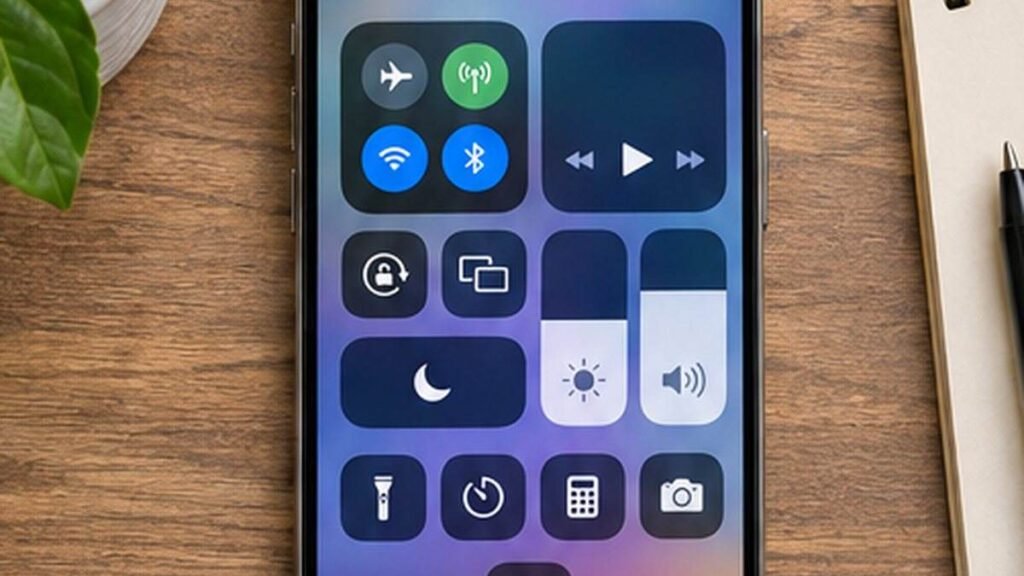
Open Control Center and tap Screen Recording. After the countdown, the iPhone records the screen. Press and hold the recording control before starting if you want to turn on the microphone for narration.
| Recording purpose | Setup choice |
|---|---|
| Silent screen walkthrough | Leave the microphone off and hide sensitive alerts. |
| Voice narration | Enable the microphone and record a short audio test. |
| App demonstration | Check whether the app permits capture and watch the result in Photos. |
Add the control and record a short test
If Screen Recording isn't in Control Center, open its editing controls and add Screen Recording. On some older iOS versions, you add controls through Settings, Control Center. The gesture for opening Control Center depends on the iPhone model.
Before recording a tutorial, hide sensitive notifications and open the screen you want to start on. Tap the control, wait for the countdown and record a ten-second sample. Stop with the recording indicator or from Control Center. Open Photos and check the video.
Choose what the microphone should capture
Press and hold Screen Recording and turn the microphone on if you want your voice or room sound. Keep it off if you need a clean demonstration without room noise. Playback and protected media behavior vary by app, and some apps block capture. Screen recording also has limitations when screen mirroring is active.
For an explainer, say the action you are about to take, pause briefly, then perform it. Check how your words sound on the sample. If the tutorial uses music or private material, make sure you're allowed to record and share it.
Trim and check the final file
Open the recording in Photos, then edit and trim the start and end. Keep an original if you may need to re-edit. Check that passwords, messages and account information stayed off-screen. If you are sharing a demonstration, rewatch it on a smaller screen to confirm viewers can read the controls.
If the recording is missing or stops unexpectedly, check available storage and try a short recording on the Home Screen. If that works and one app fails, look up the app's capture restrictions.
If you need a tutorial people can follow
Run through the steps once at normal speed and then record a second take with brief pauses. A tap followed by an instant screen change can be hard to follow. Check the exported clip on a smaller screen before sharing it.
Why does the recording have no narration?
The microphone has its own switch. Press and hold the Screen Recording control, turn the microphone on and record a short sample. Check the sample in Photos with the volume up before making a longer recording.
Sources
Featured and Web Story visuals are AI-generated editorial illustrations.