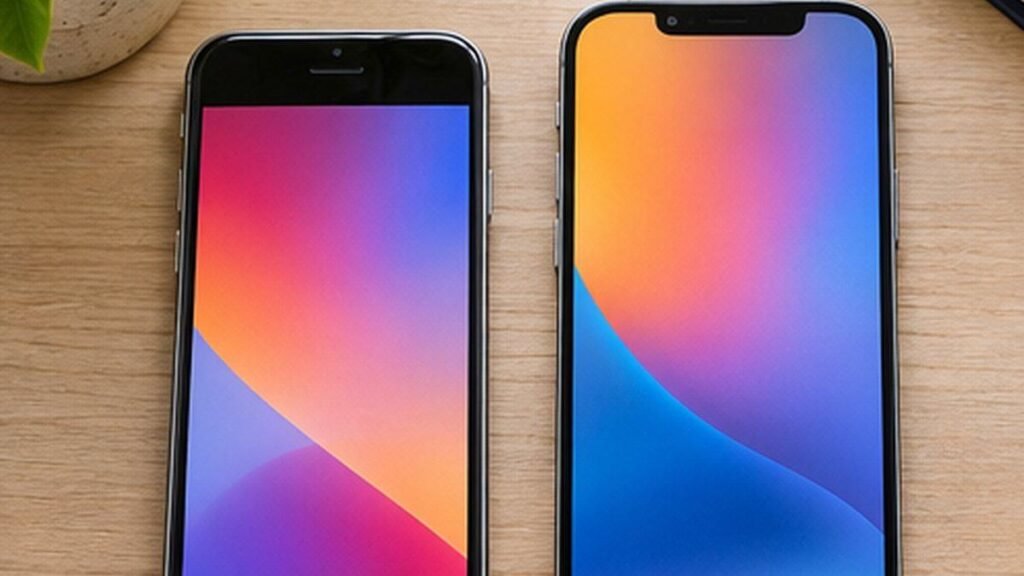
Apple's Quick Start can set up a new iPhone with a nearby old one. Keep both phones available until you've checked your cellular line, photos and important accounts. The moment the new home screen appears is a good time to verify the basics, especially if you're about to hand over the old phone.
| Migration choice | When it fits |
|---|---|
| Direct Quick Start transfer | Both phones are present and can remain together until the transfer finishes. |
| iCloud restore | You have an accessible backup and can let downloads continue after setup. |
| Computer backup restore | You have the backup and any encryption password needed to use it. |
Prepare while the old phone still works
Connect the old iPhone to Wi-Fi, turn on Bluetooth and plug both devices into power as needed. Make a current backup. Confirm you know your Apple Account credentials and can complete its verification steps. Look up how your bank, work apps and authenticators move accounts. Some use steps separate from the phone transfer.
Check whether the new device has enough room for what you plan to bring over. If the old phone has much more storage in use than the new model allows, review what can be synced or archived before starting. Keep local copies of anything important that isn't safely stored elsewhere.
Choose direct transfer or restore
Bring the devices together and follow the Quick Start prompts. Apple offers choices that can include transferring directly from the old device or downloading data from iCloud. A direct transfer keeps both devices occupied until that stage finishes. An iCloud restore can continue downloading apps and content after setup.
If the prompt disappears, Apple recommends restarting both devices and trying again. Keep them near each other and plugged in until migration finishes. If you don't have the old device, follow Apple's setup steps for restoring an available iCloud or computer backup instead.
Verify the five things you actually use
Place a call and ask someone to text your number. Open the photo library and check recent items, then try your password manager or authenticator. Check your bank or work login and make sure recent messages and app-specific content are present. Wallet cards and an Apple Watch can need their own setup.
Keep the old device until the checks pass and cellular service is confirmed. If you're trading it in, complete Apple's erase and handoff steps only once you're satisfied with the transfer.
If a photo appears to be missing
Check whether Photos is still syncing and whether the old device or cloud library has the original. Check the most recent items and a few older albums. Keep the old device intact while you work out whether an app is still downloading or whether it needs a separate transfer.
Does Quick Start move every app’s login?
Some apps require a fresh login or a separate migration step, particularly authenticators and accounts with a security device. Open those apps on the new phone while the old one is still available. Confirm you can complete a sign-in before trading it in.
Sources
Featured and Web Story visuals are AI-generated editorial illustrations.