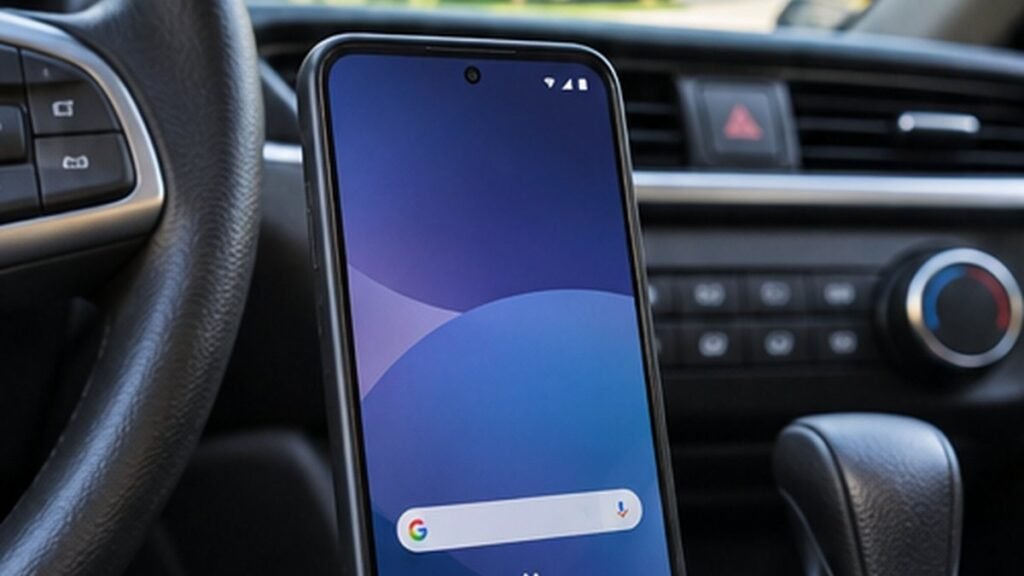
If Android Auto used to work and now only charges your phone, start with a short known-good data cable and the car's integration USB port. If you connect wirelessly, check whether both the phone and the vehicle support wireless Android Auto before clearing anything. Run these tests while parked.
| What works | How to narrow the issue |
|---|---|
| Phone charges but projection fails | Use the data port and a short cable without adapters. |
| A different phone works in the same car | Compare the first phone’s settings and software. |
| Wired works but wireless drops | Check wireless support, saved devices and where the drop occurs. |
Rule out a charging-only connection
Google recommends a high-quality USB cable, preferably under 3 feet, and a direct connection without hubs or extensions. Start with the cable supplied with the phone if it fits and supports data. Check your owner's manual for which USB port supports Android Auto. Confirm the vehicle's Android Auto or smartphone projection setting is enabled.
If the setup fails after you switch cables, note whether the phone displays a permission prompt. Restart the phone and infotainment system and reconnect. If a second compatible phone works with the same cable and port, compare settings on the first phone before replacing vehicle hardware.
Start wireless setup from the correct place
Enable Bluetooth and Wi-Fi and follow the car's wireless pairing steps. Some vehicles support only a cable, and support can vary by trim or head unit. If another phone connects automatically, temporarily disconnect it through the car settings while testing.
Google's troubleshooting guidance includes reviewing previously connected cars in the Android Auto settings. Menu placement can vary by phone. Remove the saved connection and re-pair only after noting how the car handles its list of paired phones. If you use a wireless adapter, test the vehicle's native connection separately to isolate the adapter.
Record a useful failure report
Give support the phone model, Android version, car or receiver model, wired or wireless mode and whether the failure began after an update. If maps work but audio does not, name the affected app and whether calls still work. A partial failure gives support a different starting point from a system that never appears on the screen.
If the connection breaks at the same spot
Write down whether wireless Android Auto reconnects when you leave that area. Try an approved wired connection on the same route if your car supports it. A comparison can help you describe whether the problem affects wireless projection alone.
Do I need to install a separate Android Auto app?
On current compatible phones, Android Auto is integrated into the phone according to Google. The car or head unit still has to support it. Confirm phone and vehicle compatibility and check the integration settings before looking for a separate download.
Sources
Featured and Web Story visuals are AI-generated editorial illustrations.