Source check: November 4, 2026. Availability, prices, and access notices can change.
If your Roku remote stopped working, check the batteries and identify the remote before trying a reset. A simple Roku remote uses infrared and needs a clear path to the receiver. A voice remote connects through pairing, so moving a coffee mug may not solve its problem.
Work through the matching branch below. You usually do not need to factory-reset the Roku, erase your apps, or buy another remote as your first move.
First, identify what stopped working
Try Home, the directional pad, and volume separately. If you can browse apps but cannot change the television volume, the Roku connection may be fine; TV-control setup is the likely next place to look. If nothing responds, begin with power.
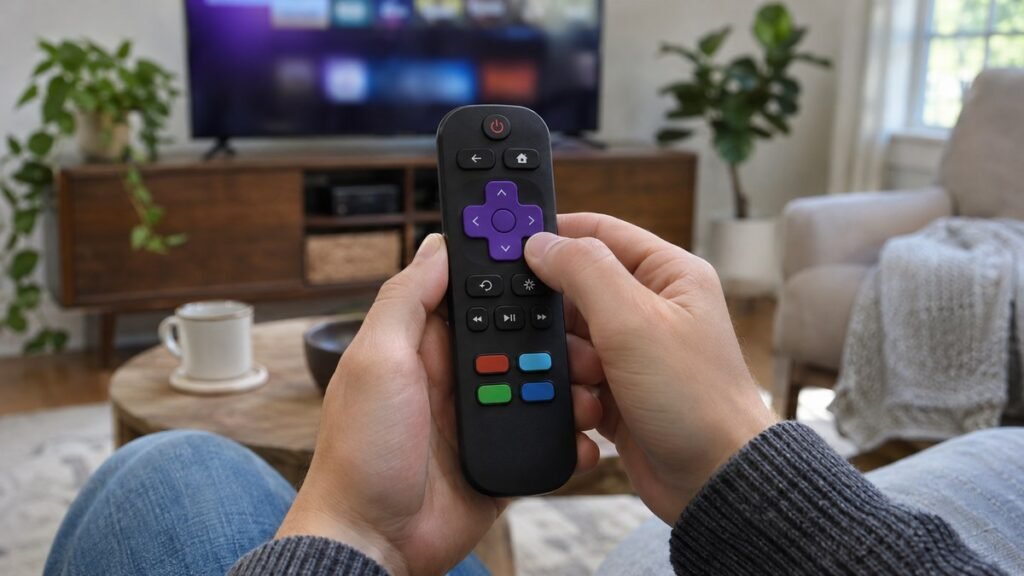
A voice button with a microphone or magnifying-glass symbol identifies a voice remote. A basic remote without that button is generally the simple type. Check Roku’s model-specific identification guide if yours differs.
1. Check batteries or charging
For replaceable batteries, remove them, press two buttons, and install a fresh matching pair with the polarity shown inside the compartment. Do not mix new and old cells. For a rechargeable model, use its specified cable and allow it to charge fully.
If the remote is unusually hot, stop using it and let it cool on a hard, nonflammable surface. Do not handle hot batteries or keep charging a damaged device.
2. Fix a simple infrared remote
Point it toward the receiver and remove objects blocking that path. A streaming player hidden behind a television or inside a cabinet may not receive infrared commands. Try a closer position and another angle. Simple remotes do not pair, so looking for a pairing button on one sends you down the wrong path.
3. Restart and pair a voice remote
Restart the Roku player or TV, then follow the pairing procedure for that remote. Roku’s pairing instructions say to hold its Pairing button for five seconds until the light flashes. Compatible models without that button use Back and Home together for five seconds. Wait for the onscreen confirmation before testing.
If you can already control Roku with another remote or the mobile app, the settings route is Settings → Remotes & devices → Add devices → Remote. Menu wording can differ by software version. Use the official instructions linked below for your model.
4. If only TV power or volume fails
These controls involve the television, not just the streaming player. Point toward the TV’s receiver. Check the television’s HDMI-CEC setting where applicable, and repeat Roku’s remote-for-TV-control setup. A soundbar or receiver can make this different from a TV-speaker setup.
Make a note of whether volume fails everywhere or only inside one app. That small detail can save a lot of unnecessary resetting.
5. Use the phone app as a temporary remote
The Roku mobile app can help if the phone and Roku are already connected to the same network and the device is discoverable. It does not automatically connect an offline Roku to a new Wi-Fi network. Keep a working compatible physical remote available when changing networks.
If the app controls Roku reliably while the physical remote does not, focus on the remote, compatibility, batteries, or pairing rather than reinstalling every streaming app.
When replacement makes sense
A broken button, corrosion, liquid damage, or repeated failure after the correct procedure can justify replacement. Match the replacement to the exact Roku player or TV model; a low-priced generic infrared remote is not interchangeable with every streaming stick.
Read – Jaguars at Ravens on November 5: Kickoff Time and How to Watch
Quick questions
Why is there no pairing button?
A simple IR remote does not need one. Some voice remotes use a button combination instead. Identify the model before following a reset video.
Should I factory-reset Roku?
That erases settings and creates setup work. Try power, the correct signal or pairing checks, and compatibility first. Contact Roku if those fail.
Related reading: reset your streaming subscriptions.
Sources
Visuals: AI-generated editorial illustrations. They are not documentary photographs, exact product images, or evidence of hands-on testing.